
Post by Ivan Walsh. Follow me on Twitter.
Last week we showed you how Bullet Lists can crash MS Word. We outlined some techniques to reduce the file size, mostly by creating pre-formatted bullet lists in advance. But what happens if you’re given a User Guide that’s already bloated to massive proportions. It’s too late to create new styles at this stage.
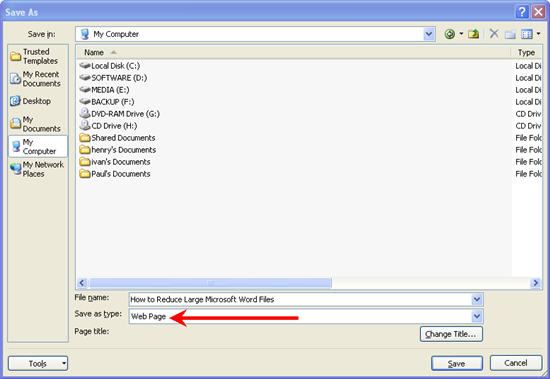
Here’s what to do.
1. Open the User Guide in Microsoft Word.
2. Cut and paste every graphic from the file into an image-editing tool, such as Snagit.
Create a naming convention, (e.g. Page1-A.gif, Page1-B.gif etc) and name each graphic using the same naming convention.
WARNING: DON’T SAVE THE FILE YET!
3. In Word, select File, Save As HTML.
Name the file with an HTML extension, e.g. Proposal.html and then close Word.
4. Re-open Word. Select File, Open and select the Proposal.html file.
5. Select File, Save As and save Proposal.html with a .doc extension, e.g. Proposal.doc.
TIP: This process of converting the Microsoft Word file into HTML and back into Word, removes unnecessary (i.e. corrupt) code in the file and will significantly reduce the file size.
6. Insert the graphic back in the correct order.
I’ve seen Word files larger than 20 MB reduced to less than 3MB in less than one minute by using this technique. Might be worth a try! The reason you don’t save the file at Step 2 is because this would trigger Word into action (e.g. I WILL now save this file etc) and as it struggles to save the oversized file, will probably crash the application.
I hoped you enjoyed these articles on fixing corrupt or damaged documents. What’s been your experience using Word?
About the Author: Ivan Walsh shares Action Plan Tips at Klariti. He also creates Business Plans for SMEs
Related posts:
- How to convert Microsoft Word documents into Adobe FrameMaker This article explains how to convert large files between Microsoft...
- Stop Your Technical Documents From Crashing – Part 1 Is there anything worse than writing User Guides all afternoon...
- Convert Word Documents into MP3s Automatically & Claim your iPod as a Tax Write-off Image via Wikipedia Remember the first time you heard your...
- How To Write Documents Faster & Save Your Fingers From Exhaustion What to know how to type faster and get those...
- 10 Reasons to Love Microsoft Word 2010 & Ditch Snagit's Screen Capture Tool Image by Ivan Walsh What do you want to see...
Related posts brought to you by Yet Another Related Posts Plugin.


